Control & Connectivity
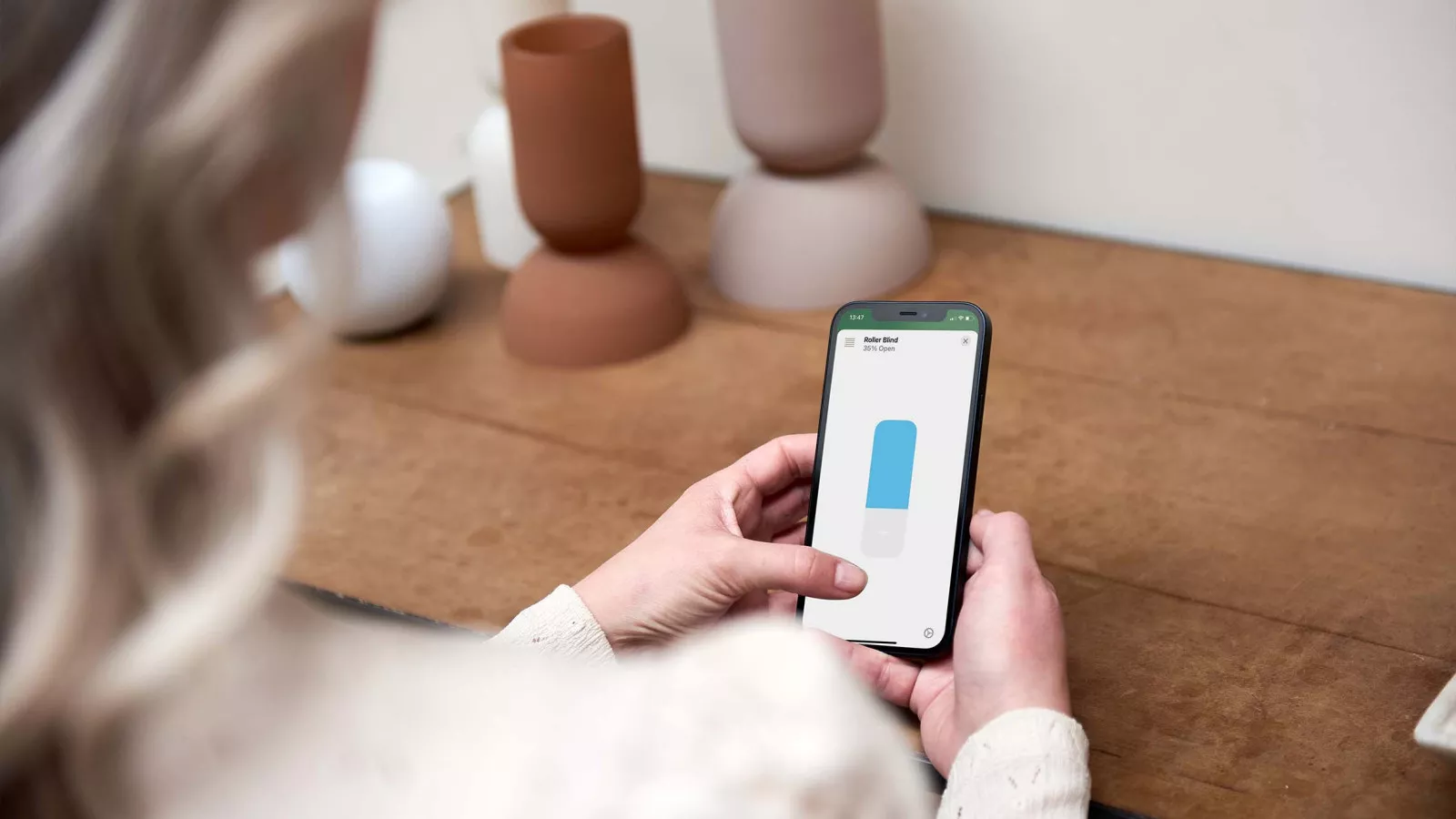
HomeKit Motors - Frequently asked questions

First, check the setup code of your motor. Eve Motionblinds motors with HomeKit have a setup code showing the HomeKit icon. If you see a different setup code, then you have a motor with Bluetooth or Matter technology. In that case, please check out our Bluetooth or Matter support.
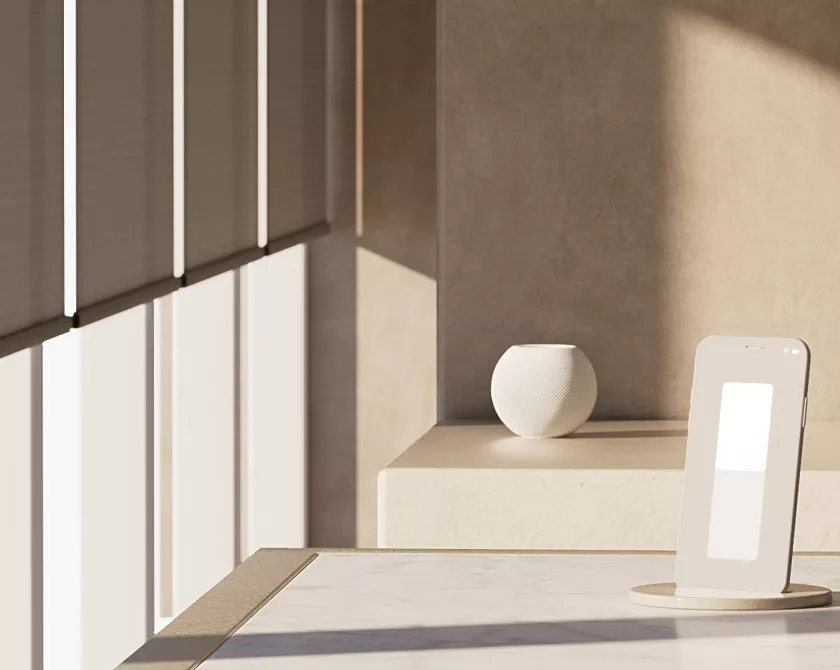
Smart window coverings powered by Eve Motionblinds motors work with Apple HomeKit technology directly from your iPhone, without the need for a bridge, registration or any cloud dependency. Simply scan the HomeKit Setup Code with your iPhone to connect Eve Motionblinds, and create schedules to put your blinds on autopilot.
Eve Motionblinds supports Bluetooth and Thread. Instead of relying on a cloud, all data and intelligence are stored locally, which means data exchanged in the home stays in the home. Controlling Eve Motionblinds automatically and away from home requires a HomePod mini or an Apple TV (4th generation or later) as a home hub.
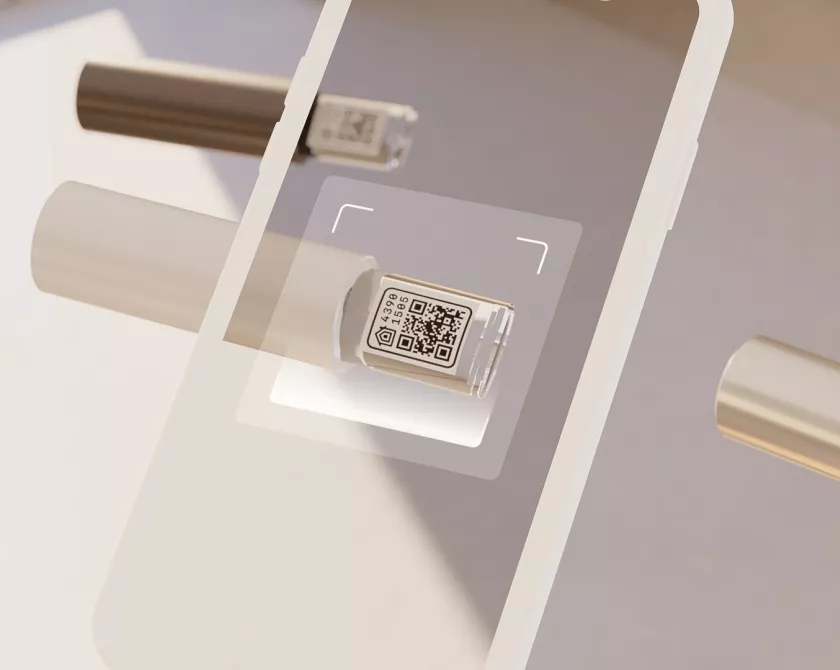
Eve Motionblinds motors can be set up through the Eve for HomeKit app, which can be downloaded for free from the App Store. No registration is required to use the app. Open the Eve app and tap Add Accessory. Eve will now guide you through the setup process.
Scan the HomeKit setup code with your iPhone. When a HomePod or Apple TV 4K is present as Thread border router, Eve Motionblinds automatically joins the network. What to do if this is not working?
1. Make sure Eve Motionblinds is On
Activate the motor by plugging in a powered USB-C cable. Then, pull once shortly to make sure the motor is responding.
2. Make sure Bluetooth is turned On
Go to the iPhone or iPad's settings and activate Bluetooth.
3. Turn Eve Motionblinds Off, wait, turn back On
Put the motor in transport mode. Wait 15 seconds and turn the motor back on by de-activating transport mode.
4. Reboot the iPhone or iPad
Sometimes the iPhone or iPad that is using the Home app is causing the issue. Simply turn the iPhone or iPad off, wait a few seconds, and then turn the iPhone or iPad back on.
5. Make sure the iPhone or iPad is connected to the Internet
You need to make sure the iPhone or iPad is connected to the Internet, and on the same Wi-Fi network as the HomeKit devices. You can make sure that the Wi-Fi network is working by checking the Internet connection from multiple devices. If there is no Wi-Fi network, it may be necessary to reboot the router.
6. Make sure the iPhone or iPad is signed into iCloud
Make sure the iPhone or iPad is signed into iCloud. HomeKit and the Home app require iCloud to function.
7. Remove Eve Motionblinds from the Home App, then re-add it
Removing Eve Motionblinds from the Home app and re-adding it can help to resolve connectivity issues. Before re-adding Eve Motionblinds to the Home app, make sure to reset the connection. (note: all settings and automations will be deleted.)
Bluetooth Motors - Frequently asked questions
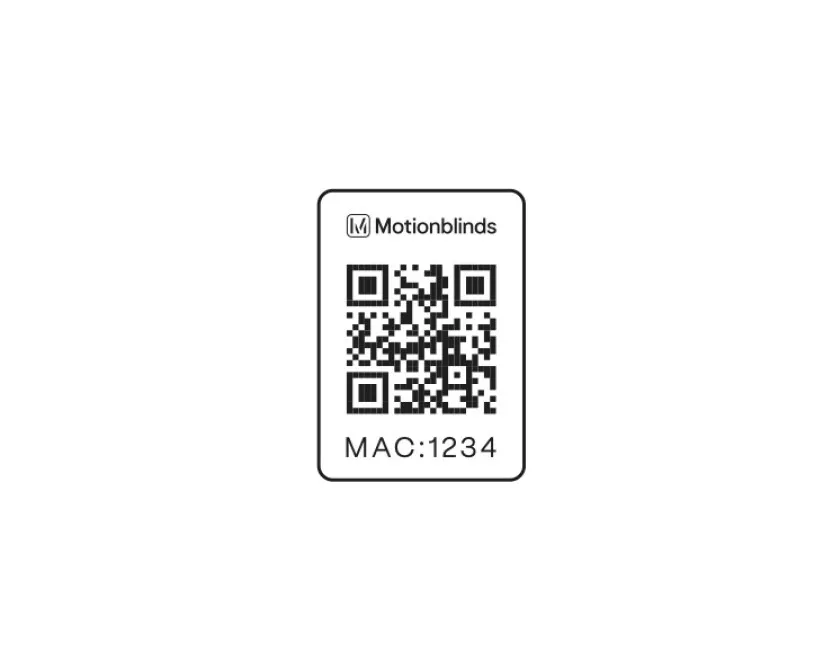
First, check the setup code of your motor. Motionblinds motors with Bluetooth have a setup code showing the MAC address of the motor. If you see a different setup code, then you have a motor with Matter or HomeKit technology. In that case, please check out our Matter or HomeKit support.
Motionblinds Bluetooth motors can be set up and programmed in a minute by iOS and Android smartphones, without the need for a bridge or remote control. The blinds can be operated through the Motionblinds Bluetooth app within Bluetooth range (about 10 meters).
Putting the blinds on autopilot is very easy by programming timers into the motor through the app. At scheduled times, blinds automatically move to their preset positions. To safeguard user privacy, all data and intelligence are strored locally on the motor, instead of relying on a cloud.
Motionblinds Bluetooth motors you can program and control with:
- Motionblinds Bluetooth app
- Motor buttons and pull controls
- Motionblinds remote control
Smart home connectivity
Want to control your Motionblinds Bluetooth motor with your smartphone from anywhere in the world, or connect to a smart home platform such as Google Home, Amazon Alexa, and Samsung SmartThings (does not work with Apple Home). Then install a Motionblinds Wi-Fi Bridge and download the Motionblinds Bridge app. For this, check out our Wi-Fi Bridge support.
Motionblinds Bluetooth motors can be set up through the Motionblinds Bluetooth app, which can be downloaded for free from the App Store and Play Store. No registration is required to use the app.
Please do the following checks before you start setting up your Motionblinds Bluetooth motor with your smartphone:
- Install the shade to your window.
- Activate the motor by charging it with a USB-C cable.
- Make sure the Bluetooth function on your smartphone is enabled (Bluetooth > On).
Now follow these steps to get your Motionblinds Bluetooth motor ready for use:
- Download the latest version of the Motionblinds Bluetooth app from the App Store (iOS) or Play Store (Android). Note: there are multiple Motionblinds apps, please download the correct one. No registration or account is required for this app.
- Open the Motionblinds Bluetooth app and press the + sign to add your window covering in the app.
- Scan the setup code of your Motionblinds Bluetooth motor once the app asks for it. Follow the instructions in the app to set up the motor.
The ultimate open/close position of the window covering is determined by the end positions of the motor. You can easily set and adjust these.
First, check if the end positions of the motor are programmed. You can do this by pulling the pull cord once briefly to see if the window covering automatically moves to an upper or lower position. If this does not work, you still need to set the end positions. This can be done with:
- Motionblinds Bluetooth app
Open the settings of the respective window covering / motor, choose Positions and set both end positions from the app. - Motor buttons and pull control
Check out the user manual for your motor: find your product. - Remote control
Check out the user manual for your motor: find your product.
Want to control your Motionblinds Bluetooth motor with your smartphone from anywhere in the world, or connect to a smart home platform such as Google Home, Amazon Alexa, and Samsung SmartThings (does not work with Apple Home). Then install a Motionblinds Wi-Fi Bridge and download the Motionblinds Bridge app. For this, check out our Wi-Fi Bridge support.
The firmware in the motor can be updated to improve the motor's performance, or add additional functionality. The motor firmware can be updated through the Motionblinds Bluetooth app.
First, make sure the Bluetooth motor firmware is up to date. Open the Motionblinds Bluetooth app and go to the corresponding window covering. When a firmware update is available for the motor you will receive a notification in the app. Follow the instructions in the app to update the firmware of the motor.
Important during updating:
- Do not close the Motionblinds Bluetooth app.
- Do not operate the Motionblinds Bluetooth motor.
- Stay close to the motor with your smartphone to maintain connection.
Is it not working? Please check the Troubleshoot Q&As.
Follow these steps if you cannot add the Motionblinds Bluetooth motor in the Motionblinds Bluetooth app:
- Turn on Bluetooth
Make sure the Bluetooth function on your smartphone is enabled (Bluetooth > On). - Turn the motor off and on again
Turn the motor off and on again by briefly pulling the cord twice while holding the reset button. The LED light will light up briefly: red (motor is off) and green (motor is on). - Motionblinds Bluetooth app
Download the latest version of the Motionblinds Bluetooth app from the App Store (iOS) or Play Store (Android). Note: there are more than one Motionblinds apps, please download the correct one. No registration or account is required for this app. - Motor firmware update
Make sure the Bluetooth motor firmware is up to date. Open the Motionblinds Bluetooth app and go to the corresponding window covering. When a firmware update is available for the motor you will receive a notification in the app. Follow the instructions in the app to update the firmware of the motor. Important during updating:- Do not close the Motionblinds Bluetooth app.
- Do not operate the Motionblinds Bluetooth motor.
- Stay close to the motor with your smartphone to maintain connection.
Important while updating:
- Do not close the Motionblinds Bluetooth app.
- Do not operate the Motionblinds Bluetooth motor.
- Stay close to the motor with your smartphone to maintain connection.
Does the firmware update of the Motionblinds motor fail, or does the update remain stagnant at a certain percentage for a long time? Then follow these steps.
- Restart the app
Close the Motionblinds Bluetooth app on your smartphone and open the app again. - Turn the motor off and on again
Turn the motor off and on again by briefly pulling the cord twice while holding the reset button. The LED light will light up briefly: red (motor is off) and green (motor is on). - Try to update the Bluetooth motor firmware again
Open the Motionblinds Bluetooth app and go to the corresponding window covering. When a firmware update is available for the motor you will receive a notification in the app.
Is the motor firmware update still failing? Try again by repeating the above steps.
Wi-Fi Bridges - Frequently asked questions
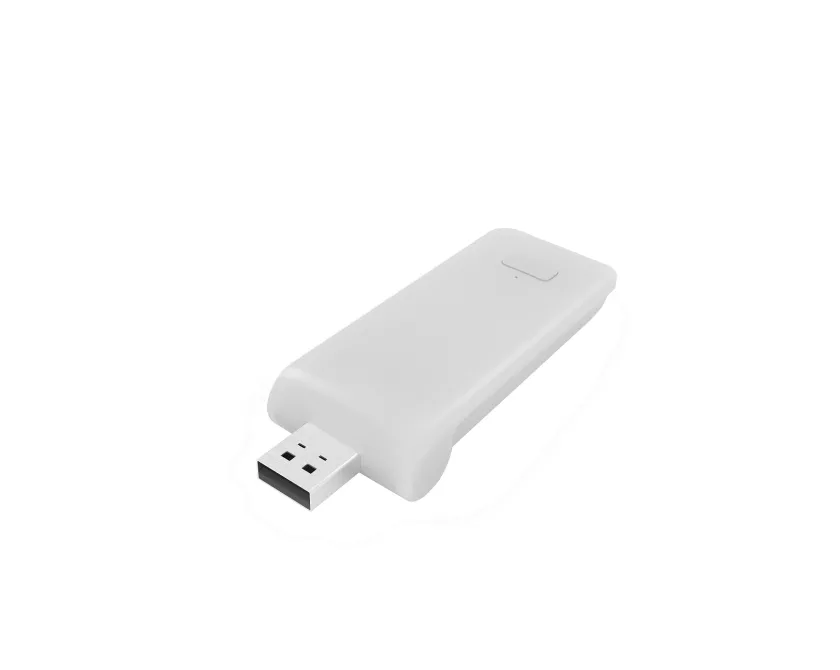
Want to control your Motionblinds Bluetooth motor with your smartphone from anywhere in the world, or connect to a smart home platform such as Google Home, Amazon Alexa, and Samsung SmartThings (does not work with Apple Home). Then install a Motionblinds Wi-Fi bridge and download the Motionblinds bridge app.

Set up and operation of the Motionblinds Wi-Fi bridge works through the Motionblinds bridge app, which can be downloaded for free from the App Store and Play Store. Registration is required to use the app.
Set up and operation of the Motionblinds Wi-Fi bridge works through the Motionblinds bridge app, which can be downloaded for free from the Play Store. Watch the video to find out how it works.
Set up and operation of the Motionblinds Wi-Fi bridge works through the Motionblinds bridge app, which can be downloaded for free from the App Store. Watch the video to find out how it works.
- The Wi-Fi password is wrong.
Restart the setup wizard for your bridge and use the correct password for your Wi-Fi network. The password is case sensitive. - Enable location services on your smartphone.
The Motionblinds bridge app uses location services to automate scenes such as sunrise and sunset. This requires location services on your smartphone to be enabled for the Motionblinds bridge app while using the app. You can do this through your smartphone settings. - Temporarily disable 5G Wi-Fi on your router.
The Motionblinds Wi-Fi bridge works with 2.4G Wi-Fi. Many Wi-Fi networks also support 5G Wi-Fi. Temporarily disable the 5G Wi-Fi network on your router. Then try again to connect the Motionblinds bridge to the Wi-Fi network. After successfully connecting the Motionblinds bridge to the Wi-Fi network, 5G can be enabled again. - Router does not give an IP address to the bridge.
Press and hold the reset button on the bridge for 10 seconds. The center LED indicator will be RED. Retry to connect the bridge with your Wi-Fi network.
- Bridge is turned off.
Turn on the bridge and reboot it. - Motor battery is empty.
Charge the battery of the motor. - Activate/deactivate the motor (transport mode).
Turn the motor off and on again by briefly pulling the cord twice while holding the reset button. The LED light will light up briefly: red (motor is off) and green (motor is on). - Antenna and signal interference.
Make sure the antenna of the motor is facing outward, that is, not inside the window covering system. This prevents interference with the signal. - Distance between bridge and motor.
The distance between the bridge and the motor is too large, or there are too many (concrete) objects between them. Place the bridge closer to the motor.
Smart Home Connectivity
Motionblinds works with major smart home platforms. Learn more about Motionblinds smart home connectivity.
Control your window coverings powered by Motionblinds with your voice, simply by asking Google. Motionblinds works with Google Assistant through a cloud-to-cloud connection after installing the Motionblinds Wi-Fi bridge. Read more.

Control your window coverings powered by Motionblinds with your voice, simply by asking Alexa. Motionblinds works with Amazon Alexa through a cloud-to-cloud connection after installing the Motionblinds Wi-Fi bridge. Read more.

Let your window coverings powered by Motionblinds automatically interact with other smart devices and technologies by connecting them via IFTTT (If This Then That). This requires installation of the Motionblinds Wi-Fi bridge. Read more.