Motionblinds Wi-Fi Bridge CMD-01

Wi-Fi Bridges - Frequently asked questions
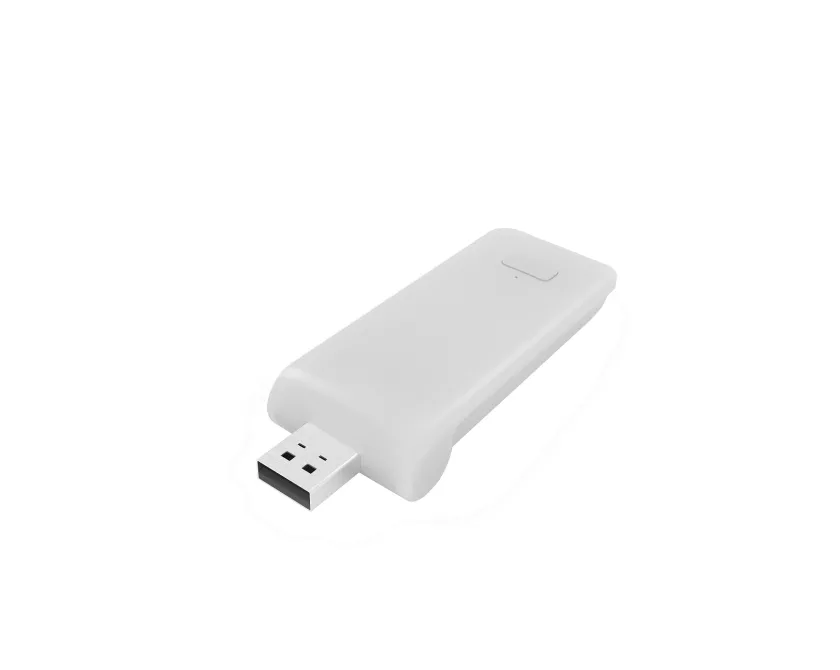
Want to control your Motionblinds Bluetooth motor with your smartphone from anywhere in the world, or connect to a smart home platform such as Google Home, Amazon Alexa, and Samsung SmartThings (does not work with Apple Home). Then install a Motionblinds Wi-Fi bridge and download the Motionblinds bridge app.

Set up and operation of the Motionblinds Wi-Fi bridge works through the Motionblinds bridge app, which can be downloaded for free from the App Store and Play Store. Registration is required to use the app.
Set up and operation of the Motionblinds Wi-Fi bridge works through the Motionblinds bridge app, which can be downloaded for free from the Play Store. Watch the video to find out how it works.
Set up and operation of the Motionblinds Wi-Fi bridge works through the Motionblinds bridge app, which can be downloaded for free from the App Store. Watch the video to find out how it works.
- The Wi-Fi password is wrong.
Restart the setup wizard for your bridge and use the correct password for your Wi-Fi network. The password is case sensitive. - Enable location services on your smartphone.
The Motionblinds bridge app uses location services to automate scenes such as sunrise and sunset. This requires location services on your smartphone to be enabled for the Motionblinds bridge app while using the app. You can do this through your smartphone settings. - Temporarily disable 5G Wi-Fi on your router.
The Motionblinds Wi-Fi bridge works with 2.4G Wi-Fi. Many Wi-Fi networks also support 5G Wi-Fi. Temporarily disable the 5G Wi-Fi network on your router. Then try again to connect the Motionblinds bridge to the Wi-Fi network. After successfully connecting the Motionblinds bridge to the Wi-Fi network, 5G can be enabled again. - Router does not give an IP address to the bridge.
Press and hold the reset button on the bridge for 10 seconds. The center LED indicator will be RED. Retry to connect the bridge with your Wi-Fi network.
- Bridge is turned off.
Turn on the bridge and reboot it. - Motor battery is empty.
Charge the battery of the motor. - Activate/deactivate the motor (transport mode).
Turn the motor off and on again by briefly pulling the cord twice while holding the reset button. The LED light will light up briefly: red (motor is off) and green (motor is on). - Antenna and signal interference.
Make sure the antenna of the motor is facing outward, that is, not inside the window covering system. This prevents interference with the signal. - Distance between bridge and motor.
The distance between the bridge and the motor is too large, or there are too many (concrete) objects between them. Place the bridge closer to the motor.
Smart Home Connectivity
Motionblinds works with major smart home platforms. Learn more about Motionblinds smart home connectivity.
Control your window coverings powered by Motionblinds with your voice, simply by asking Google. Motionblinds works with Google Assistant through a cloud-to-cloud connection after installing the Motionblinds Wi-Fi bridge. Read more.

Control your window coverings powered by Motionblinds with your voice, simply by asking Alexa. Motionblinds works with Amazon Alexa through a cloud-to-cloud connection after installing the Motionblinds Wi-Fi bridge. Read more.

Let your window coverings powered by Motionblinds automatically interact with other smart devices and technologies by connecting them via IFTTT (If This Then That). This requires installation of the Motionblinds Wi-Fi bridge. Read more.
Videos & Manuals
Sign up for beta software testing
Sign up for testing the CMD-01 Wi-Fi bridge beta software with the latest improvements and functionalities here.