How can we help?

Matter Motors - Frequently asked questions

First, check the setup code of your motor. Eve Motionblinds motors with Matter and Thread have a setup code showing the Matter logo. If you see a different setup code, then you have a motor with Bluetooth or HomeKit technology. In that case, please check out our Bluetooth or HomeKit support.
Eve Motionblinds motors support Matter and Thread. This makes them work with all major smart home platforms including Apple Home, Google Home, Amazon Alexa and Samsung SmartThings.
Here is what you need:
- Eve Motionblinds motor with Matter and Thread.
- Mobile app from the smart home platform of your choice.
- Border router with Matter and Thread from the smart home platform of your choice (more info).
- If necessary: Thread mesh extender(s) to extend the range of the Thread network.
Google Home, Apple Home, Samsung SmartThings, and Amazon Alexa are the most common smart home platforms. They allow you to manage smart devices such as lights, thermostats, security cameras and blind and shades through one central point, such as a smartphone app or assistant.
To set up a smart home platform, you need to:
- Download the latest version of the app from your preferred smart home platform and sign in with your account.
- Follow the instructions in the app and make sure to:
- Turn on Bluetooth on your phone.
- Grant the app permission to find other devices.
- Turn on location services.
- Create your smart home in this app and give it a name. For example: your surname (Smith Family), home address (10 Green Street), etc.
To setup and control Eve Motionblinds, you need a border router with Thread and Matter from the smart home platform of your choice.
This border router, also called home hub, creates a local Thread network in which smart devices work together and connects this network to other networks, such as Wi-Fi or the Internet. This allows smart devices in your home to be controlled from outside, for example with your smartphone or watch.
Choose the right border router:
https://www.evehome.com/en/hub
To set up your border router, you need to:
- Plug it into a power outlet, as it’s a wired device and needs electricity.
- Add the border router to the home that you have created in the app of your smart home platform. The app will ask you to connect to your local Wi-Fi network, which you should do.
This is how it works:
More info: check out support and FAQs from your smart home platform.
Battery powered Thread devices such as Eve Motionblinds motors represent endpoints in your Thread network. If the distance between your Thread border router and Eve Motionblinds motor is too long, Eve Motionblinds may not be added to the Thread network and/or may not respond adequately.
In this case, you need to add one or more devices that act as Thread Mesh Extenders / Full Thread Devices (FTDs).
These mains-powered devices that are always on, such as Eve Energy smart plug, can relay data packets and act as extenders within your Thread network. The more of these devices you have in your home, the more stable and greater its reach becomes.
The Eve Energy smart plug can act as mesh extender between your border router and Eve Motionblinds:
https://www.evehome.com/en/eve-energy
Please do the following checks before you start adding Eve Motionblinds to your smart home using the app of your smart home platform:
- Install the shade to your window.
- Activate the motor by charging it with a USB-C cable.
- Check that the end positions of your shade have been programmed by tugging the pull cord once to see if the shade automatically moves to the desired top and bottom position. If this does not work, then you need to program the end positions manually with the buttons on the motor.
Once you have all the necessities, chosen and set up a smart home platform, installed the right Thread border router, activated the Eve Motionblinds motor, and set end positions, you can add Eve Motionblinds to your smart home.
Follow these steps:
- Make sure your smartphone is connected to the Wi-Fi network to which your Thread border router is also connected.
- Open the app of your smart home platform and navigate to your home.
- Choose the option to add a new Matter device.
- Scan the Matter setup code from your Eve Motionblinds motor.
- Follow the instructions in the app to add Eve Motionblinds.
This is how it works with:
More info: check out support and FAQs from your smart home platform.
The app of your smart home platform guides you through the setup of your border router with Matter and Thread.
Do the following checks:
- Turn on Bluetooth on your smartphone.
- Connect your smartphone to your local Wi-Fi network and select this same Wi-Fi network for your border router when the app asks for this.
Is your border router still not connecting? Unplug the border router, wait 30 seconds, and plug it in again. The border router reboots. Do the above checks again and try to add the border router to your home again through the app of your smart home platform.
For more info, check out support and FAQs from your smart home platform:
The app of your smart home platform guides you through the setup of your Eve Motionblinds motor with Matter and Thread. Do the following checks if the motor is not or cannot be connected:
- Select the right Wi-Fi network
Make sure your smartphone is connected to the Wi-Fi network to which your Thread border router is also connected. - Activate/deactivate the motor (transport mode)
Turn the motor off and on again. Please find your motor and see the manual for instructions. - Check if end positions have been set
Use the manual override control option to see if the blind, shade, or curtain moves automatically to the preset end positions. Is this not working? Reprogram the end positions into the motor using the buttons on the motor. Please find your motor and see the user manual for instructions. - Reset the connection
Hold the program button for 10 seconds to delete the connection between the blind and the app. The LED lights up 5 times and the blind steps up and down 1 time to indicate that the connection is reset. Now the blind can be reconnected. - Reboot the border router
Unplug the border router, wait 30 seconds and plug it in again. The border router will reboot. - Reboot the app and/or smartphone
Close and restart the app of your smart home platform. If this does not work, restart your smartphone. - Enhance your Thread network
If the distance between your Thread border router and Eve Motionblinds motor is too long, Eve Motionblinds may not be added to the Thread network and/or may not respond adequately. In this case, you need to add one or more devices that act as Thread Mesh Extenders / Full Thread Devices (FTDs) such as Eve Energy: https://www.evehome.com/en/eve-energy. - Reset the border router and motor
Have you done the above checks but it's not working? Reset both your border router and your Eve Motionblinds motor and re-add them to your home in the app of your smart home platform. Start with a complete reset of your Eve Motionblinds motor. If it still doesn't work, reset the border router as well.
What’s new with the Matter 1.3 update for Eve Motionblinds motors?
With the free Matter 1.3 update, motorized shading solutions powered by Eve Motionblinds can now be set up and controlled locally and directly from a Thread-enabled iPhone running iOS 18 or later — no hub required. Supported devices include iPhone 15 Pro, iPhone 16, and iPhone 16 Pro.
Do I still need a hub to control my blinds?
No, a hub is no longer required for basic setup and control. You can operate your Eve Motionblinds locally via a compatible iPhone using Thread and Matter technology. Please note that for direct, hub-free setup and control, Apple Home with a compatible iPhone is currently the only option.
Which devices are compatible for direct control without a hub?
You’ll need a Thread-enabled iPhone running iOS 18 or later. Compatible models include:
-
iPhone 15 Pro
-
iPhone 16
-
iPhone 16 Pro
What can I do without a hub?
Even without a hub, you can enjoy:
-
Direct local control from a Thread-enabled iPhone
-
Setup via Matter over Thread
-
Advanced features in the Eve app like Adaptive Shading and on-device schedules
What are the benefits of adding a hub later?
Adding a hub with Thread Border Router functionality (such as a HomePod mini or Apple TV 4K) enables:
-
Remote access while away from home
-
Automations through your smart home platform
-
Extended connectivity range for your blinds
How do I get the Matter 1.3 update?
The update is installed automatically on Matter-enabled Eve Motionblinds motors that are connected to:
-
Apple Home
-
Google Home
-
SmartThings
-
Home Assistant
If you’re using a HomeKit-enabled motor and want to upgrade it to Matter, please visit: motionblinds.com/eve/upgrade-to-matter
Matter Bridges - Frequently asked questions
The CM‑55 Matter bridge is the hub of your automated blinds network. It enables control via the Motionblinds Matter app and connects locally to leading smart home platform apps for voice control and automation.
CM‑55 Matter Wi‑Fi Bridge and a USB‑C power cable.
- Max blinds: 128
- Max scenes: 50
- Max timers: 50
- Radio: 433 MHz; Wi‑Fi 2.4 GHz
- Range: ~30 m
- Power: 5V DC, up to 1.5 A
- Size: 90 × 90 × 23 mm
App Store: Motionblinds Matter Bridge App - App Store
Google Play: Motionblinds Matter Bridge - Apps op Google Play
- Ensure the bridge is in setup mode (blue LED).
- Scan the QR code on the bottom.
- Follow the setup wizard.
Can a home be shared with other users for joint control?
Yes. The primary user can share the home with other users by generating a QR code in the Motionblinds app. The invited user simply scans this QR code to gain access.
With how many users can a ‘Home’ be shared?
Unlimited. You can invite as many users as you like to share access to a Home in the Motionblinds app, allowing everyone to jointly control blinds connected via the Motionblinds Matter Wi‑Fi Bridge CM‑55.
W hat permissions do shared users have?
As a shared user, you can operate blinds and activate scenes. However, you cannot change, complete, or delete any settings, devices, scenes, or configurations within the Home.
How do I connect to my smart home platform?
Motionblinds Matter bridges seamlessly connect Motionblinds products with all major smart home platforms including Apple Home, Google Home, Amazon Alexa and Samsung SmartThings through the universal Matter standard. More information on Motionblinds and Matter: https://motionblinds.com/smart-connectivity/matter
What do I need to get started?
- Motionblinds Matter bridge
- 2.4 GHz Wi‑Fi network
- Smartphone connected to the same network
- Motionblinds Matter bridge app (latest version)
- Smart home platform app that supports Matter
- Matter controller such as a Google Nest Hub, Amazon Echo, or Apple HomePod
- More information about smart home hubs with Matter: https://motionblinds.com/smart-connectivity/hubs
How do I request a Matter pairing code?
Follow these steps to generate a Matter pairing code:
- Open the Motionblinds Matter bridge app
- Tap the three dots (⋮) in the top right corner
- Go to Settings
- Select your bridge
- Choose Matter
- Tap Request pairing code
The app will then display a numerical code.
How do I pair the bridge with my smart home platform?
- Open your smart home platform app (eg. Apple Home, Google Home, Alexa, SmartThings)
- Add a new device
- Select Matter device
- Enter the numerical pairing code from the Motionblinds app
- Follow the on‑screen instructions
After pairing, your Motionblinds products will automatically appear in your smart home platform.
Can I connect Motionblinds Matter bridges to multiple platforms?
Yes – Motionblinds Matter bridges support multi‑administration, which means you can connect the same bridge to multiple platforms. For each additional platform, request a new Matter pairing code in the Motionblinds app.
- Blue: Setup mode
- Orange: Connecting to network
- Green: Connected
- Hold 2 seconds until green: Reset Wi‑Fi credentials
- Hold 5 seconds until red: Factory reset
Blind is not responding?
- Motor battery is empty
Charge the motor. See the manual of your motor - Radio interference / shielding
Make sure that the bridge/antenna of the motor is out of the way from metal objects - The distance from the bridge to the motor is too far
Move the bridge closer to the blind - The bridge is turned off
Power the bridge
Bridge not pairing?
- Wrong password
Start the setup wizard again and use the right password. The password is case sensitive. Enter setup mode again by holding the reset button for 2 seconds. - Router does not give an IP address to the bridge
Press and hold the reset button for 5 seconds. Release when the LED emits a red light to factory reset the bridge. - Bridge is trying to connect with 5GHz
The bridge works only on 2.4 GHz networks. Please consult the manual of your router to temporarily turn off your 5GHz in the router settings.
Why is pairing not working?
Please first do the followings checks:
- The bridge is visible in the Motionblinds app
- Your smartphone and the bridge are on the same 2.4 GHz Wi‑Fi network
- Bluetooth is enabled during setup
- The Matter pairing code is still valid
**Does Bluetooth need to remain enabled?
No – Bluetooth is only required during the pairing process. After installation, the bridge and Motionblinds operate via Wi‑Fi and Matter.
**Does the CM‑55 Bridge work with 5 GHz Wi‑Fi?
No – the bridge only supports 2.4 GHz Wi‑Fi networks.
Still not working?
Request a new pairing code and restart the bridge.
Bluetooth Motors - Frequently asked questions
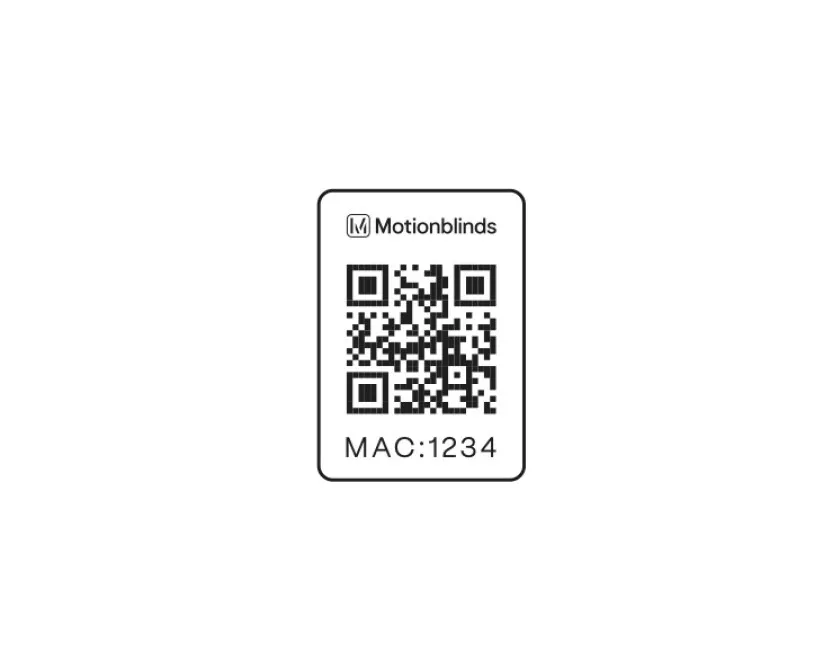
First, check the setup code of your motor. Motionblinds motors with Bluetooth have a setup code showing the MAC address of the motor. If you see a different setup code, then you have a motor with Matter or HomeKit technology. In that case, please check out our Matter or HomeKit support.
Motionblinds Bluetooth motors can be set up and programmed in a minute by iOS and Android smartphones, without the need for a bridge or remote control. The blinds can be operated through the Motionblinds Bluetooth app within Bluetooth range (about 10 meters).
Putting the blinds on autopilot is very easy by programming timers into the motor through the app. At scheduled times, blinds automatically move to their preset positions. To safeguard user privacy, all data and intelligence are strored locally on the motor, instead of relying on a cloud.
Motionblinds Bluetooth motors you can program and control with:
- Motionblinds Bluetooth app
- Motor buttons and pull controls
- Motionblinds remote control
Smart home connectivity
Want to control your Motionblinds Bluetooth motor with your smartphone from anywhere in the world, or connect to a smart home platform such as Google Home, Amazon Alexa, and Samsung SmartThings (does not work with Apple Home). Then install a Motionblinds Wi-Fi Bridge and download the Motionblinds Bridge app. For this, check out our Wi-Fi Bridge support.
Motionblinds Bluetooth motors can be set up through the Motionblinds Bluetooth app, which can be downloaded for free from the App Store and Play Store. No registration is required to use the app.
Please do the following checks before you start setting up your Motionblinds Bluetooth motor with your smartphone:
- Install the shade to your window.
- Activate the motor by charging it with a USB-C cable.
- Make sure the Bluetooth function on your smartphone is enabled (Bluetooth > On).
Now follow these steps to get your Motionblinds Bluetooth motor ready for use:
- Download the latest version of the Motionblinds Bluetooth app from the App Store (iOS) or Play Store (Android). Note: there are multiple Motionblinds apps, please download the correct one. No registration or account is required for this app.
- Open the Motionblinds Bluetooth app and press the + sign to add your window covering in the app.
- Scan the setup code of your Motionblinds Bluetooth motor once the app asks for it. Follow the instructions in the app to set up the motor.
The ultimate open/close position of the window covering is determined by the end positions of the motor. You can easily set and adjust these.
First, check if the end positions of the motor are programmed. You can do this by pulling the pull cord once briefly to see if the window covering automatically moves to an upper or lower position. If this does not work, you still need to set the end positions. This can be done with:
- Motionblinds Bluetooth app
Open the settings of the respective window covering / motor, choose Positions and set both end positions from the app. - Motor buttons and pull control
Check out the user manual for your motor: find your product. - Remote control
Check out the user manual for your motor: find your product.
Want to control your Motionblinds Bluetooth motor with your smartphone from anywhere in the world, or connect to a smart home platform such as Google Home, Amazon Alexa, and Samsung SmartThings (does not work with Apple Home). Then install a Motionblinds Wi-Fi Bridge and download the Motionblinds Bridge app. For this, check out our Wi-Fi Bridge support.
The firmware in the motor can be updated to improve the motor's performance, or add additional functionality. The motor firmware can be updated through the Motionblinds Bluetooth app.
First, make sure the Bluetooth motor firmware is up to date. Open the Motionblinds Bluetooth app and go to the corresponding window covering. When a firmware update is available for the motor you will receive a notification in the app. Follow the instructions in the app to update the firmware of the motor.
Important during updating:
- Do not close the Motionblinds Bluetooth app.
- Do not operate the Motionblinds Bluetooth motor.
- Stay close to the motor with your smartphone to maintain connection.
Is it not working? Please check the Troubleshoot Q&As.
Follow these steps if you cannot add the Motionblinds Bluetooth motor in the Motionblinds Bluetooth app:
- Turn on Bluetooth
Make sure the Bluetooth function on your smartphone is enabled (Bluetooth > On). - Turn the motor off and on again
Turn the motor off and on again by briefly pulling the cord twice while holding the reset button. The LED light will light up briefly: red (motor is off) and green (motor is on). - Motionblinds Bluetooth app
Download the latest version of the Motionblinds Bluetooth app from the App Store (iOS) or Play Store (Android). Note: there are more than one Motionblinds apps, please download the correct one. No registration or account is required for this app. - Motor firmware update
Make sure the Bluetooth motor firmware is up to date. Open the Motionblinds Bluetooth app and go to the corresponding window covering. When a firmware update is available for the motor you will receive a notification in the app. Follow the instructions in the app to update the firmware of the motor. Important during updating:- Do not close the Motionblinds Bluetooth app.
- Do not operate the Motionblinds Bluetooth motor.
- Stay close to the motor with your smartphone to maintain connection.
Important while updating:
- Do not close the Motionblinds Bluetooth app.
- Do not operate the Motionblinds Bluetooth motor.
- Stay close to the motor with your smartphone to maintain connection.
Does the firmware update of the Motionblinds motor fail, or does the update remain stagnant at a certain percentage for a long time? Then follow these steps.
- Restart the app
Close the Motionblinds Bluetooth app on your smartphone and open the app again. - Turn the motor off and on again
Turn the motor off and on again by briefly pulling the cord twice while holding the reset button. The LED light will light up briefly: red (motor is off) and green (motor is on). - Try to update the Bluetooth motor firmware again
Open the Motionblinds Bluetooth app and go to the corresponding window covering. When a firmware update is available for the motor you will receive a notification in the app.
Is the motor firmware update still failing? Try again by repeating the above steps.
Wi-Fi Bridges - Frequently asked questions
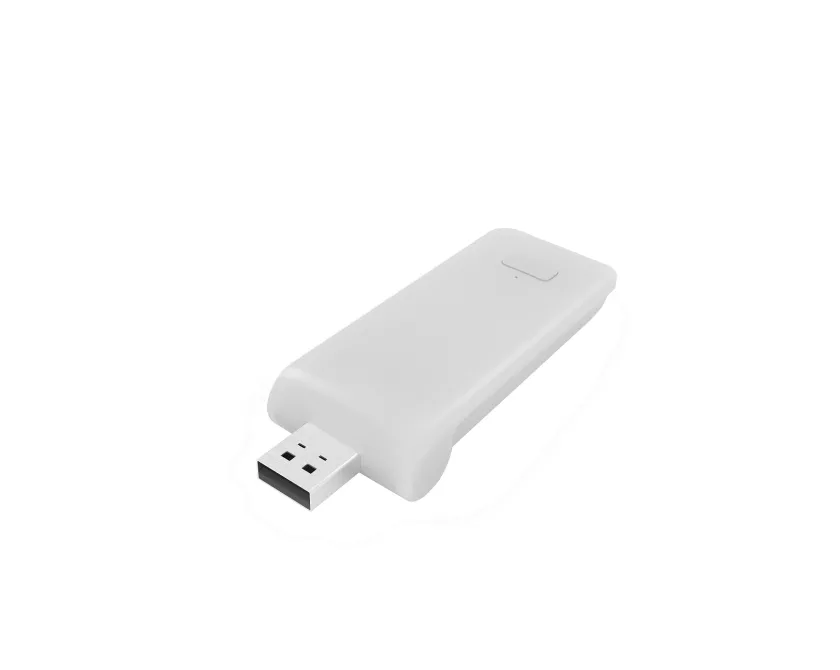
Want to control your Motionblinds Bluetooth motor with your smartphone from anywhere in the world, or connect to a smart home platform such as Google Home, Amazon Alexa, and Samsung SmartThings (does not work with Apple Home). Then install a Motionblinds Wi-Fi bridge and download the Motionblinds bridge app.

Set up and operation of the Motionblinds Wi-Fi bridge works through the Motionblinds bridge app, which can be downloaded for free from the App Store and Play Store. Registration is required to use the app.
Set up and operation of the Motionblinds Wi-Fi bridge works through the Motionblinds bridge app, which can be downloaded for free from the Play Store. Watch the video to find out how it works.
Set up and operation of the Motionblinds Wi-Fi bridge works through the Motionblinds bridge app, which can be downloaded for free from the App Store. Watch the video to find out how it works.
- The Wi-Fi password is wrong.
Restart the setup wizard for your bridge and use the correct password for your Wi-Fi network. The password is case sensitive. - Enable location services on your smartphone.
The Motionblinds bridge app uses location services to automate scenes such as sunrise and sunset. This requires location services on your smartphone to be enabled for the Motionblinds bridge app while using the app. You can do this through your smartphone settings. - Temporarily disable 5G Wi-Fi on your router.
The Motionblinds Wi-Fi bridge works with 2.4G Wi-Fi. Many Wi-Fi networks also support 5G Wi-Fi. Temporarily disable the 5G Wi-Fi network on your router. Then try again to connect the Motionblinds bridge to the Wi-Fi network. After successfully connecting the Motionblinds bridge to the Wi-Fi network, 5G can be enabled again. - Router does not give an IP address to the bridge.
Press and hold the reset button on the bridge for 10 seconds. The center LED indicator will be RED. Retry to connect the bridge with your Wi-Fi network.
- Bridge is turned off.
Turn on the bridge and reboot it. - Motor battery is empty.
Charge the battery of the motor. - Activate/deactivate the motor (transport mode).
Turn the motor off and on again by briefly pulling the cord twice while holding the reset button. The LED light will light up briefly: red (motor is off) and green (motor is on). - Antenna and signal interference.
Make sure the antenna of the motor is facing outward, that is, not inside the window covering system. This prevents interference with the signal. - Distance between bridge and motor.
The distance between the bridge and the motor is too large, or there are too many (concrete) objects between them. Place the bridge closer to the motor.
HomeKit Motors - Frequently asked questions

First, check the setup code of your motor. Eve Motionblinds motors with HomeKit have a setup code showing the HomeKit icon. If you see a different setup code, then you have a motor with Bluetooth or Matter technology. In that case, please check out our Bluetooth or Matter support.
Smart window coverings powered by Eve Motionblinds motors work with Apple HomeKit technology directly from your iPhone, without the need for a bridge, registration or any cloud dependency. Simply scan the HomeKit Setup Code with your iPhone to connect Eve Motionblinds, and create schedules to put your blinds on autopilot.
Eve Motionblinds supports Bluetooth and Thread. Instead of relying on a cloud, all data and intelligence are stored locally, which means data exchanged in the home stays in the home. Controlling Eve Motionblinds automatically and away from home requires a HomePod mini or an Apple TV (4th generation or later) as a home hub.
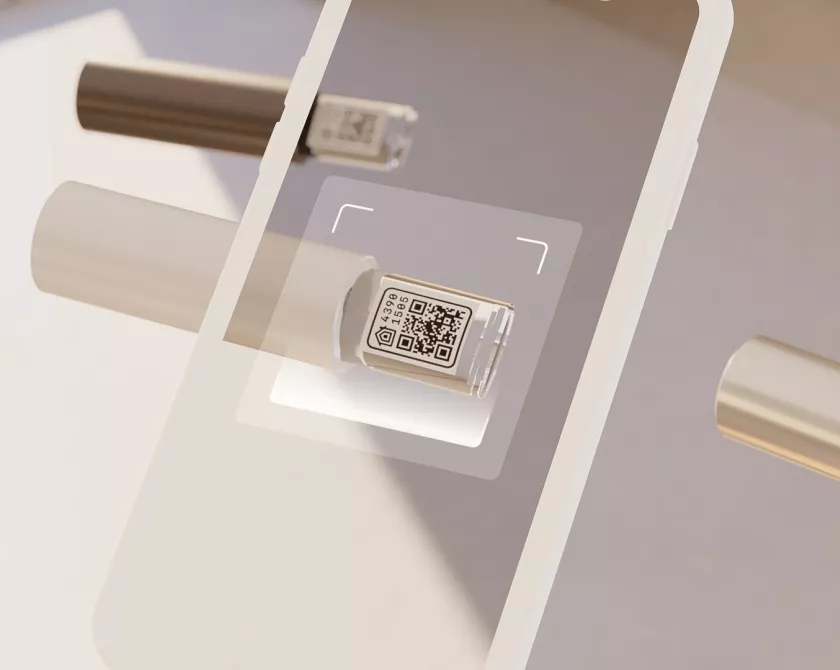
Eve Motionblinds motors can be set up through the Eve for HomeKit app, which can be downloaded for free from the App Store. No registration is required to use the app. Open the Eve app and tap Add Accessory. Eve will now guide you through the setup process.
Scan the HomeKit setup code with your iPhone. When a HomePod or Apple TV 4K is present as Thread border router, Eve Motionblinds automatically joins the network. What to do if this is not working?
1. Make sure Eve Motionblinds is On
Activate the motor by plugging in a powered USB-C cable. Then, pull once shortly to make sure the motor is responding.
2. Make sure Bluetooth is turned On
Go to the iPhone or iPad's settings and activate Bluetooth.
3. Turn Eve Motionblinds Off, wait, turn back On
Put the motor in transport mode. Wait 15 seconds and turn the motor back on by de-activating transport mode.
4. Reboot the iPhone or iPad
Sometimes the iPhone or iPad that is using the Home app is causing the issue. Simply turn the iPhone or iPad off, wait a few seconds, and then turn the iPhone or iPad back on.
5. Make sure the iPhone or iPad is connected to the Internet
You need to make sure the iPhone or iPad is connected to the Internet, and on the same Wi-Fi network as the HomeKit devices. You can make sure that the Wi-Fi network is working by checking the Internet connection from multiple devices. If there is no Wi-Fi network, it may be necessary to reboot the router.
6. Make sure the iPhone or iPad is signed into iCloud
Make sure the iPhone or iPad is signed into iCloud. HomeKit and the Home app require iCloud to function.
7. Remove Eve Motionblinds from the Home App, then re-add it
Removing Eve Motionblinds from the Home app and re-adding it can help to resolve connectivity issues. Before re-adding Eve Motionblinds to the Home app, make sure to reset the connection. (note: all settings and automations will be deleted.)
We are sorry that something is wrong with your Motionblinds product. We recommend that you contact your dealer. Motionblinds is available through a global network of authorized resellers. Visit the store locator to find a local dealer near you or an online store.
Smart home connectivity
Motionblinds can easily become part of your smart home ecosystem and work together with other devices