Motionblinds Matter Wi-Fi Bridge CM-55
Matter Bridges - Frequently asked questions
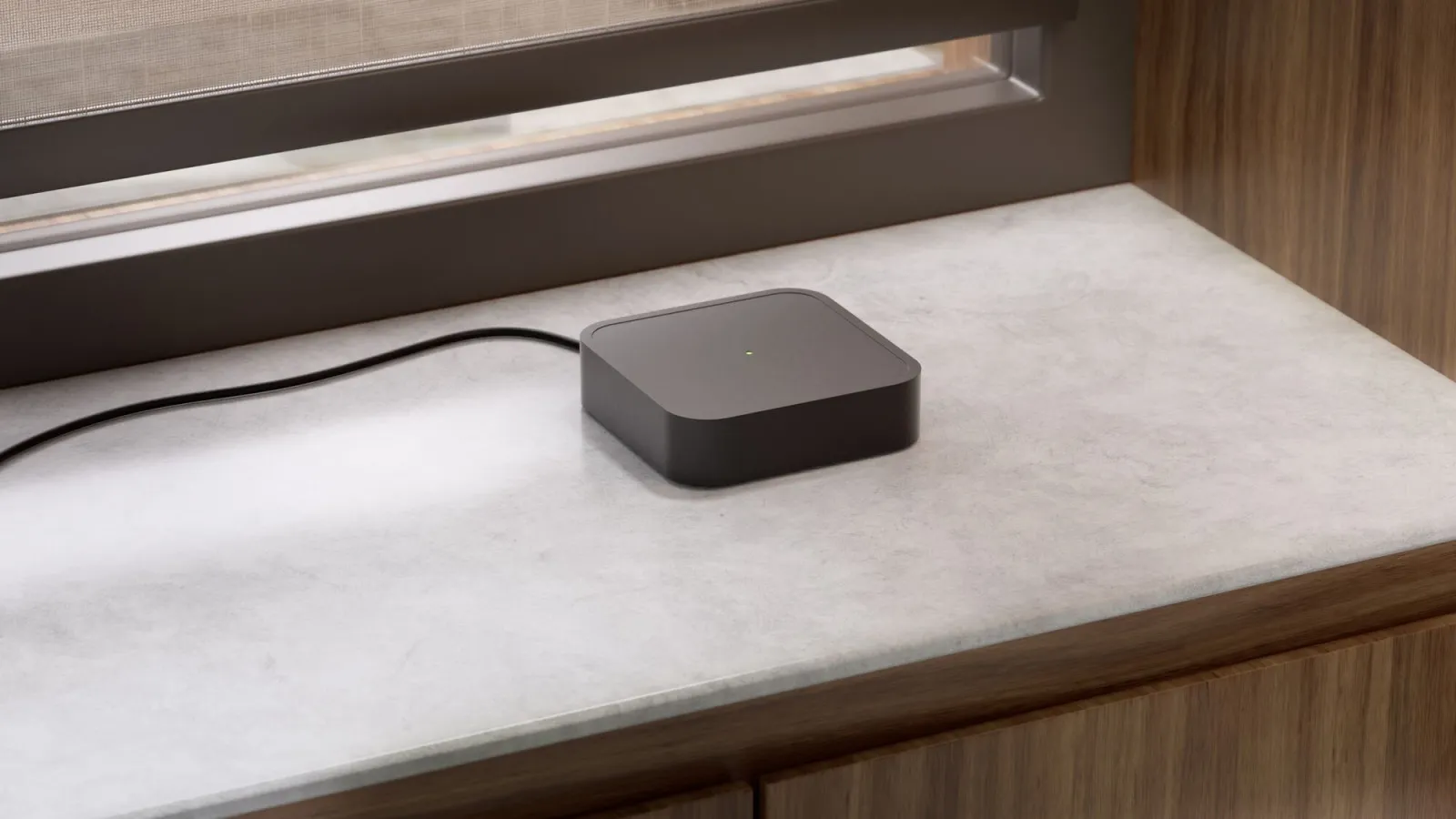
The CM‑55 Matter bridge is the hub of your automated blinds network. It enables control via the Motionblinds Matter app and connects locally to leading smart home platform apps for voice control and automation.
CM‑55 Matter Wi‑Fi Bridge and a USB‑C power cable.
- Max blinds: 128
- Max scenes: 50
- Max timers: 50
- Radio: 433 MHz; Wi‑Fi 2.4 GHz
- Range: ~30 m
- Power: 5V DC, up to 1.5 A
- Size: 90 × 90 × 23 mm
App Store: Motionblinds Matter Bridge App - App Store
Google Play: Motionblinds Matter Bridge - Apps op Google Play
- Ensure the bridge is in setup mode (blue LED).
- Scan the QR code on the bottom.
- Follow the setup wizard.
Can a home be shared with other users for joint control?
Yes. The primary user can share the home with other users by generating a QR code in the Motionblinds app. The invited user simply scans this QR code to gain access.
With how many users can a ‘Home’ be shared?
Unlimited. You can invite as many users as you like to share access to a Home in the Motionblinds app, allowing everyone to jointly control blinds connected via the Motionblinds Matter Wi‑Fi Bridge CM‑55.
W hat permissions do shared users have?
As a shared user, you can operate blinds and activate scenes. However, you cannot change, complete, or delete any settings, devices, scenes, or configurations within the Home.
How do I connect to my smart home platform?
Motionblinds Matter bridges seamlessly connect Motionblinds products with all major smart home platforms including Apple Home, Google Home, Amazon Alexa and Samsung SmartThings through the universal Matter standard. More information on Motionblinds and Matter: https://motionblinds.com/smart-connectivity/matter
What do I need to get started?
- Motionblinds Matter bridge
- 2.4 GHz Wi‑Fi network
- Smartphone connected to the same network
- Motionblinds Matter bridge app (latest version)
- Smart home platform app that supports Matter
- Matter controller such as a Google Nest Hub, Amazon Echo, or Apple HomePod
- More information about smart home hubs with Matter: https://motionblinds.com/smart-connectivity/hubs
How do I request a Matter pairing code?
Follow these steps to generate a Matter pairing code:
- Open the Motionblinds Matter bridge app
- Tap the three dots (⋮) in the top right corner
- Go to Settings
- Select your bridge
- Choose Matter
- Tap Request pairing code
The app will then display a numerical code.
How do I pair the bridge with my smart home platform?
- Open your smart home platform app (eg. Apple Home, Google Home, Alexa, SmartThings)
- Add a new device
- Select Matter device
- Enter the numerical pairing code from the Motionblinds app
- Follow the on‑screen instructions
After pairing, your Motionblinds products will automatically appear in your smart home platform.
Can I connect Motionblinds Matter bridges to multiple platforms?
Yes – Motionblinds Matter bridges support multi‑administration, which means you can connect the same bridge to multiple platforms. For each additional platform, request a new Matter pairing code in the Motionblinds app.
- Blue: Setup mode
- Orange: Connecting to network
- Green: Connected
- Hold 2 seconds until green: Reset Wi‑Fi credentials
- Hold 5 seconds until red: Factory reset
Blind is not responding?
- Motor battery is empty
Charge the motor. See the manual of your motor - Radio interference / shielding
Make sure that the bridge/antenna of the motor is out of the way from metal objects - The distance from the bridge to the motor is too far
Move the bridge closer to the blind - The bridge is turned off
Power the bridge
Bridge not pairing?
- Wrong password
Start the setup wizard again and use the right password. The password is case sensitive. Enter setup mode again by holding the reset button for 2 seconds. - Router does not give an IP address to the bridge
Press and hold the reset button for 5 seconds. Release when the LED emits a red light to factory reset the bridge. - Bridge is trying to connect with 5GHz
The bridge works only on 2.4 GHz networks. Please consult the manual of your router to temporarily turn off your 5GHz in the router settings.
Why is pairing not working?
Please first do the followings checks:
- The bridge is visible in the Motionblinds app
- Your smartphone and the bridge are on the same 2.4 GHz Wi‑Fi network
- Bluetooth is enabled during setup
- The Matter pairing code is still valid
**Does Bluetooth need to remain enabled?
No – Bluetooth is only required during the pairing process. After installation, the bridge and Motionblinds operate via Wi‑Fi and Matter.
**Does the CM‑55 Bridge work with 5 GHz Wi‑Fi?
No – the bridge only supports 2.4 GHz Wi‑Fi networks.
Still not working?
Request a new pairing code and restart the bridge.